
Upload to Clio in Seconds
The easiest way to upload files to Clio from Chrome. Save documents to any matter in seconds - no Clio Drive required.
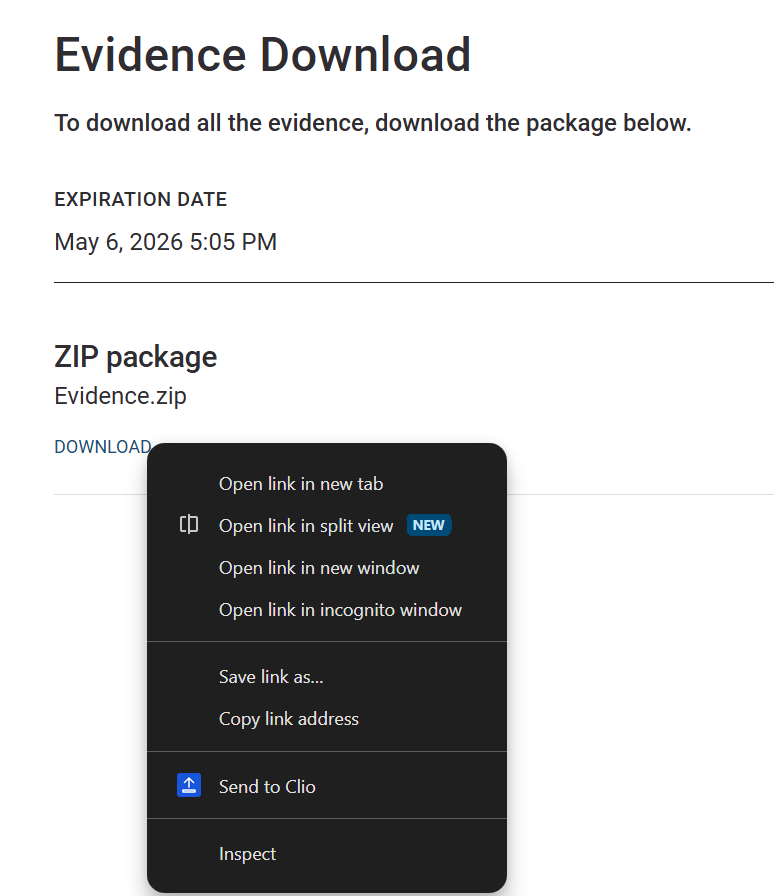
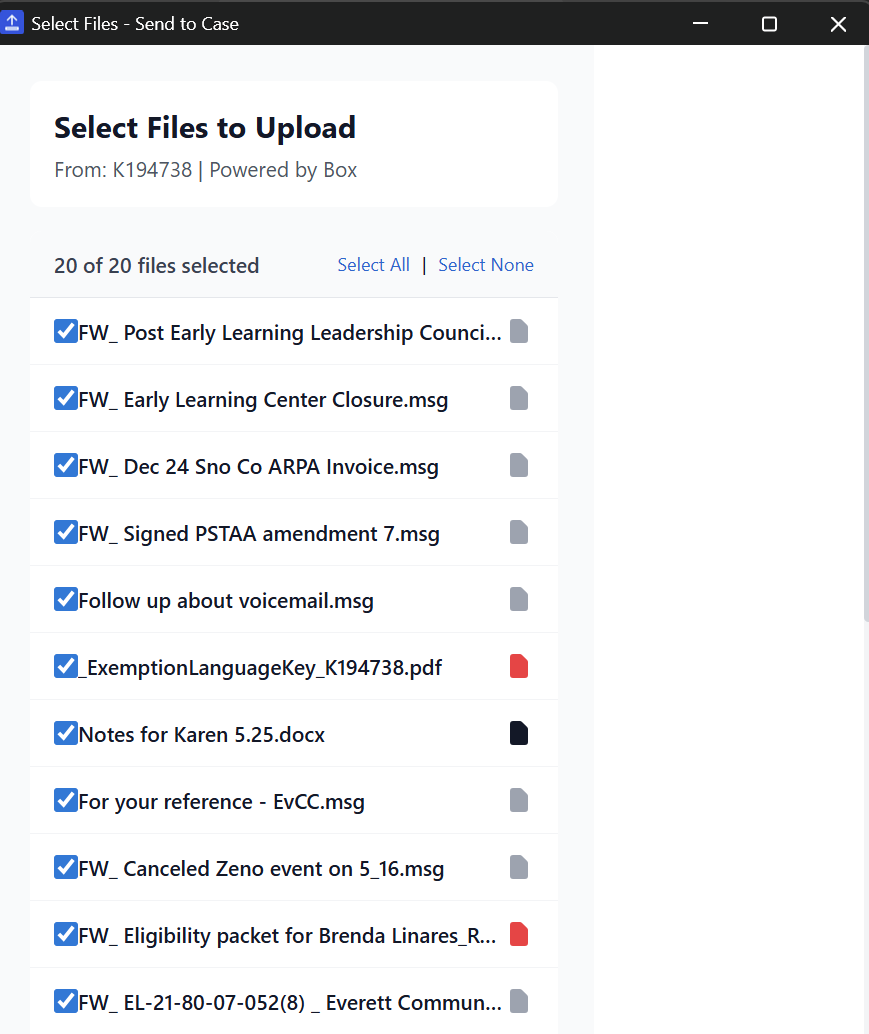
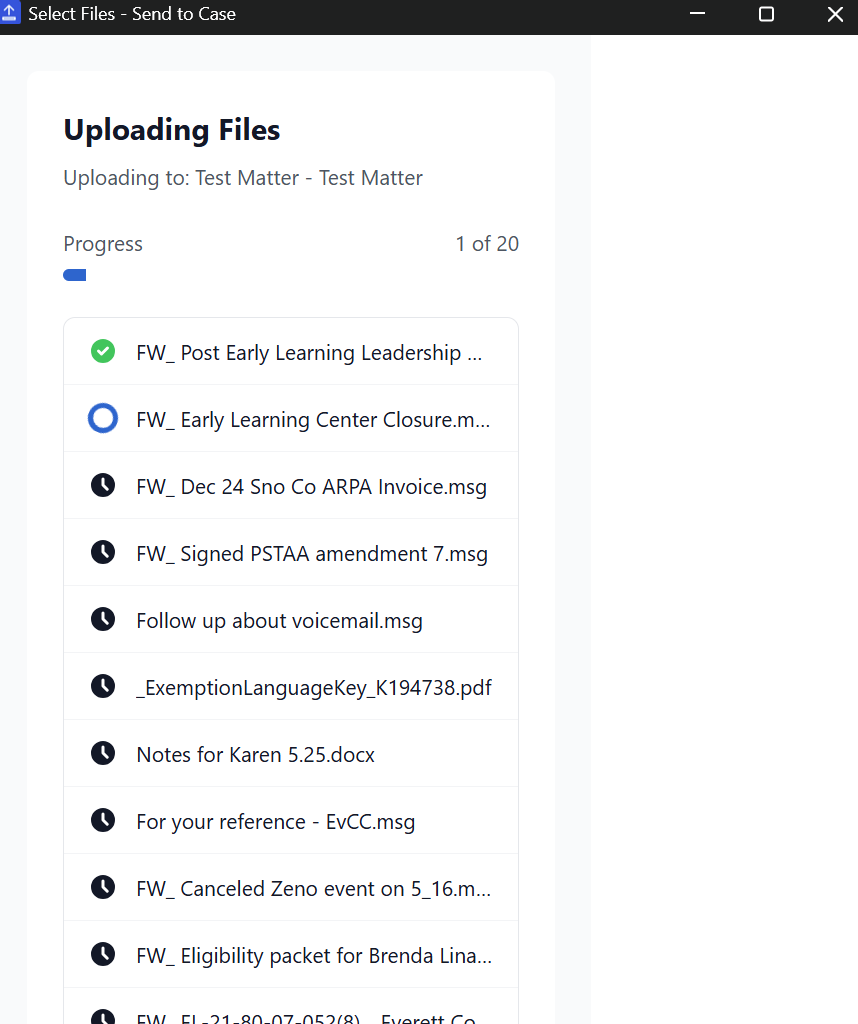
The Faster Clio Document Upload Tool
See the difference Send to Case makes.
7 steps, ~2 minutes per file
2 steps, ~10 seconds per file
Everything You Need
Powerful features designed for legal professionals.
One-Click Upload
Right-click any download link on any website and upload directly to Clio. No more downloading, finding, and uploading manually.
Batch Upload
Clio bulk upload tool - scan any website for downloadable files and save them all to your matter at once. Perfect for evidence portals and document repositories.
Zip Extraction
Automatically extract and upload zip file contents. Each file goes to your matter individually, ready to use.
Right-Click Any Link
Right-click any download link and select "Send to Clio" to upload directly. Works on any website, even when automatic detection doesn't find your file.
Folder Selection
Browse and select exactly which folder to upload to. Navigate subfolders, or set a default folder to skip selection entirely.
Drag & Drop
Drag files from your computer directly into the extension. No need to use the file picker - just drop and upload to your selected matter.
Perfect For
Real scenarios where Send to Case saves you time.
Court Documents
Download filings from PACER, CM/ECF, or state court portals and send them straight to your matter - no local save needed.
Insurance Portals
Grab claim documents, medical records, and policy files from carrier portals without the download-upload dance.
Email Attachments
Upload attachments directly from Gmail, Outlook web, or any webmail - click the download link and pick your matter.
How It Works
Get started in under a minute.
Install Extension
Add Send to Case to Chrome in one click. Takes about 30 seconds.
Connect to Clio
Sign in with your Clio account. We use official OAuth - we never see your password.
Pick Matter & Folder
Search for your matter, optionally select a specific folder, and upload. Set a default folder to make future uploads even faster.
Simple, Transparent Pricing
Start free, upgrade when you need more.
Free
Perfect for trying it out
- 10 uploads per month
- All core features
- Batch upload & zip extraction
- Folder selection & upload history
- No credit card required
Pro
For power users
- Unlimited uploads
- All core features
- Batch upload & zip extraction
- Folder selection & upload history
- Priority support
- All future features included
Cancel anytime. Your limit resets at the start of each month.
Built for Security-Conscious Firms
Your client data deserves the highest protection. Here's how we keep it safe.
Direct Upload
Files go straight from Chrome to Clio. We never see your documents.
Privacy First
Minimal data for reliability. We never see your files or what you upload.
Official OAuth
We use Clio's official authentication. We never see your password.
No Storage
We don't store your files, matters, or any data on our servers.
Frequently Asked Questions
Got questions? We've got answers.
Is Send to Case really free?
Yes! You get 10 free uploads per month, no credit card required. Need more? Upgrade to Pro for $9.99/month for unlimited uploads.
Is my data secure?
Absolutely. Your documents upload directly from your browser to Clio's servers - they never pass through ours. We use Clio's official OAuth system, so we never see your password. We collect anonymous error reports to fix bugs and track upload counts for plan limits, but we never see your file contents.
What file types are supported?
Any file type that Clio supports - PDFs, Word documents, Excel spreadsheets, images, and more. Files up to 5GB in size are supported.
Does it work with Clio Manage?
Yes, Send to Case works with Clio Manage. It connects through Clio's official API to upload documents to your matters.
How do I disconnect my Clio account?
Click the extension icon, then click "Disconnect" in the settings. This removes your authentication tokens. You can also remove the extension entirely from Chrome.
How is this different from Clio Drive?
Clio Drive syncs folders on your computer. Send to Case lets you upload files to Clio from any website or browser download - no sync, no desktop app, no folder management. It's a lightweight browser tool for quick uploads.
Can I choose which folder to upload to?
Yes! After selecting a matter, you can browse and select any folder or subfolder within it. You can also set a default folder for each matter to skip the folder selection step in future uploads.
Can I upload files from my computer?
Yes! You can drag and drop files directly into the extension popup, or use the file picker to select files from your computer. It's not just for browser downloads.
Ready to Save Hours Every Week?
Join legal professionals who've already streamlined their Clio workflow.
Questions? support@sendtocase.com