
Bulk Upload Files to Clio Matters
Stop uploading files one at a time. Scan any page for downloadable documents and batch upload them all to your Clio matter at once.
The One-at-a-Time Upload Problem
Every paralegal and attorney knows this pain.
You have 25 documents from an evidence portal that need to go to Clio. For each one, you have to:
25 files = 25 download-upload cycles
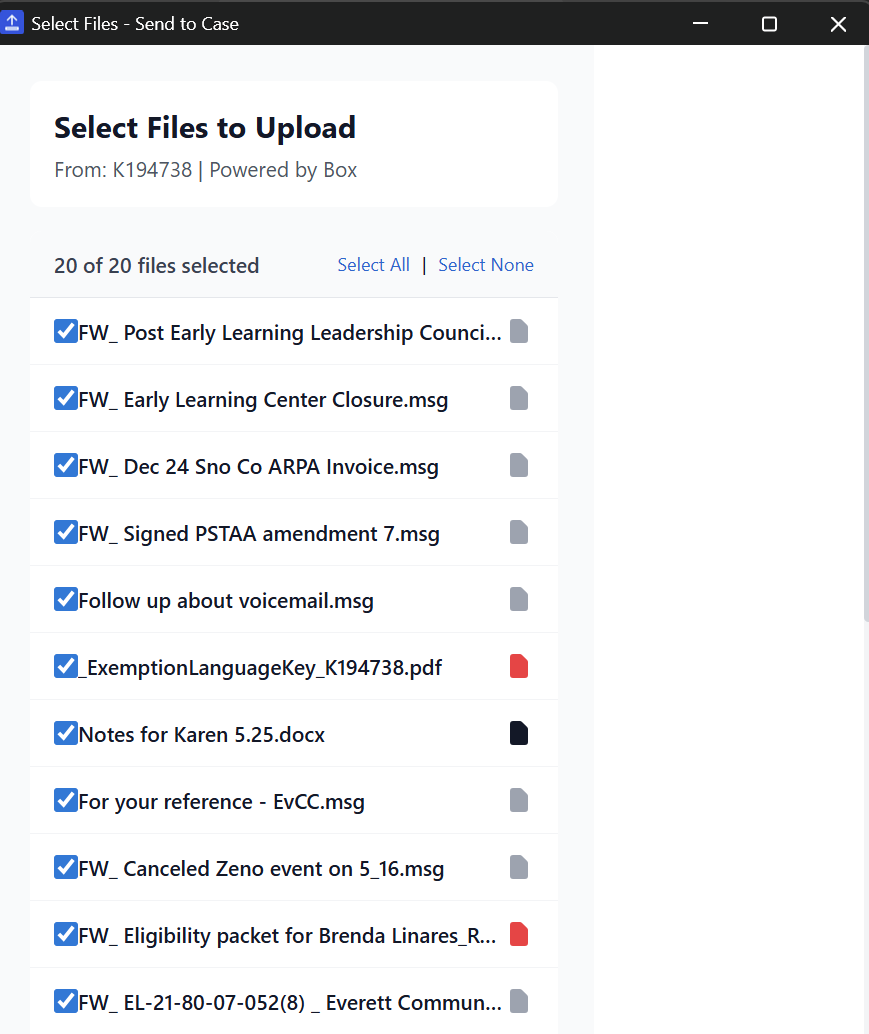
Scan the page, select the files you want, and upload all 25 at once:
One action uploads everything
How Batch Scanning Works
Find and upload all documents from any webpage.
Open Page
Navigate to the page with your files.
Right-Click
Select "Find Downloadable Files".
Review Files
See all discovered documents.
Select & Upload
Pick files, choose matter.
Done
All files in Clio.
Perfect For Bulk Filing Scenarios
Where batch upload saves the most time.
Evidence Portals
Police body cam footage portals, crime lab result sites, and evidence sharing platforms often have dozens of files per case.
Scan page, select all, upload in batch.
Discovery Productions
Receiving discovery from opposing counsel? Upload zip files of production documents and they'll be extracted automatically.
Upload zip, files extracted individually.
Transaction Closings
Post-closing documentation often involves uploading 20+ signed documents. Drag them all into the extension at once.
Drag & drop entire folder contents.
Court Dockets
Downloading a full case docket from PACER or state courts? Scan the page and upload all filings in one batch.
Full docket, one upload.
Insurance Files
Carrier portals with medical records, bills, and policy documents. Scan the claims portal and download everything.
All records to one matter.
Client Intake
New client sends a folder of documents? Drag the entire batch into Send to Case for a clean intake.
Complete intake in one upload.
Automatic Zip Extraction
Upload a zip file and Send to Case extracts everything inside. Each document uploads individually to your matter, properly organized and ready to use.
- Auto-extract: Zip contents become individual files in Clio
- Preserve names: Original file names are maintained
- All file types: PDFs, Word docs, images, and more
- Skip junk: System files like .DS_Store are filtered out
discovery_production.zip
47 files, 125 MB
Drag files here
or click to browse
Drag & Drop Multiple Files
Already have files on your computer? Don't upload them to Clio one by one. Drag them all into Send to Case and upload the entire batch to your matter.
- Select multiple files in your file browser
- Drag them into the extension popup
- All files upload to the same matter and folder
Bulk Upload FAQ
Common questions about batch uploading to Clio.
Can I upload multiple files to Clio at once?
Yes, Send to Case lets you batch upload multiple files to Clio. You can scan a webpage for all downloadable files, select the ones you want, and upload them all to the same matter and folder in one action.
How does the batch page scanning work?
Right-click anywhere on a page and select "Find Downloadable Files". The extension scans the page for document links (PDFs, Word docs, images, etc.) and presents them in a list. You can then select which files to upload.
Can I upload a zip file and extract its contents to Clio?
Yes, when you upload a zip file, Send to Case automatically extracts all the files inside and uploads them individually to your matter. Each file appears separately in Clio, ready to use.
Is there a limit to how many files I can batch upload?
There's no limit on files per batch, but each file counts toward your monthly upload limit. Free users get 10 uploads per month, while Pro users get unlimited uploads.
What file types can I bulk upload to Clio?
Any file type that Clio supports: PDFs, Word documents, Excel files, images, videos, audio files, and more. Files up to 5GB each are supported.
Ready to Stop Uploading One File at a Time?
Install Send to Case and start batch uploading to Clio today.
Free tier includes 10 uploads/month. See pricing