
Save Court Documents to Clio in Seconds
Stop the download-upload dance. Upload filings from PACER, CM/ECF, and state court portals directly to your Clio matters with a single right-click.
The Court Document Problem
Every litigation attorney knows this frustration.
You're in PACER downloading the latest filings. For each document, you have to:
Multiply by 10+ documents per case...
Right-click the document link in PACER and select "Send to Clio":
The document never touches your Downloads folder.
Works With All Court Systems
Federal, state, and local courts - if it has a download link, Send to Case can handle it.
Federal Courts
Upload filings directly from the federal court system.
- PACER (all federal courts)
- CM/ECF
- Bankruptcy courts
- Appeals courts
State Courts
All 50 states supported via any eFiling portal.
- California courts
- New York NYSCEF
- Texas eFiling
- Florida e-Portal
- And all other states
Other Portals
Works anywhere with downloadable documents.
- Administrative agencies
- Arbitration portals
- Municipal courts
- Any download link
How to Upload Court Documents to Clio
Four simple steps to streamline your court document workflow.
Install Extension
Add Send to Case to Chrome from the Web Store. Takes about 30 seconds.
Connect to Clio
Sign in with your Clio credentials. We use secure OAuth - we never see your password.
Right-Click Document
In PACER or any court portal, right-click the document link and select "Send to Clio".
Select Matter
Search for your matter, pick a folder, and the document uploads directly to Clio.
Perfect For Every Court Filing
Whatever document type you're working with, Send to Case handles it.
Pleadings
Complaints, answers, motions, and briefs
Court Orders
Orders, judgments, and opinions
Docket Sheets
Full dockets and case summaries
Exhibits
Attached exhibits and evidence
Download an Entire Docket at Once
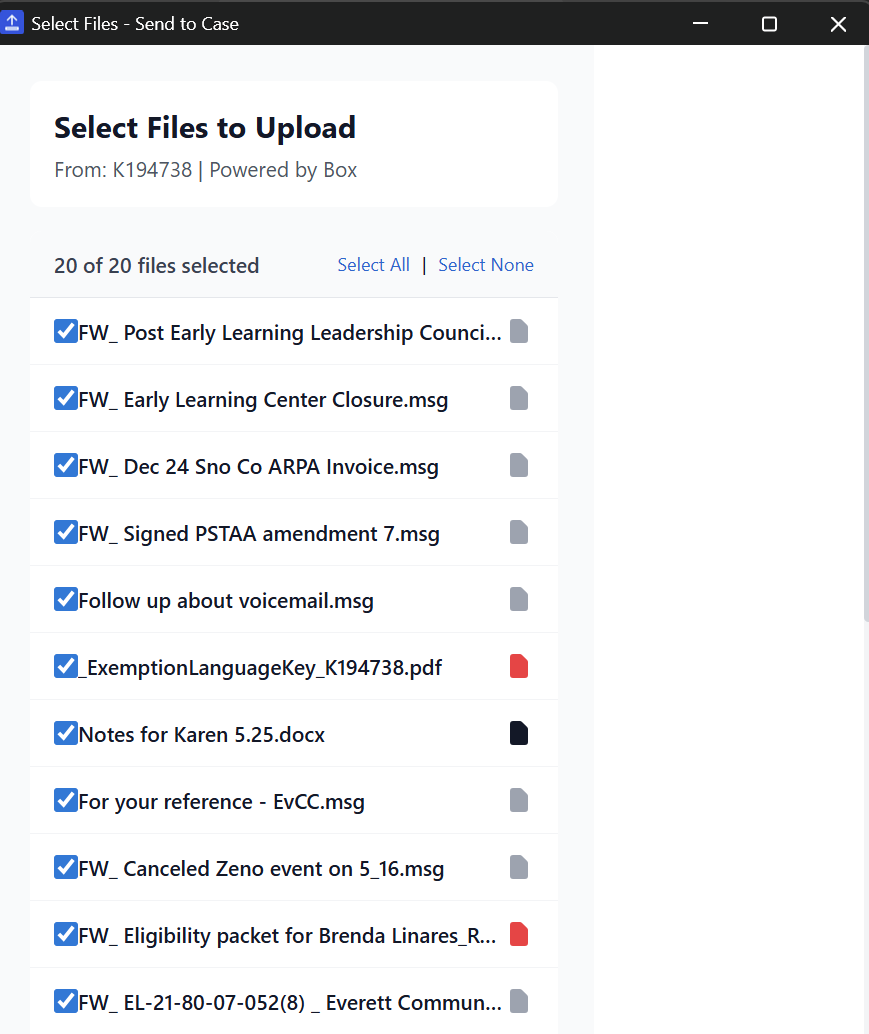
Need to save multiple filings from the same case? Use the batch scan feature to find all downloadable documents on the page and upload them to your matter in one action.
- Scans the page for all document links
- Select which documents to upload
- All files go to the same matter and folder
Batch upload in action:
Court Documents FAQ
Common questions about uploading court documents to Clio.
Does Send to Case work with PACER?
Yes, Send to Case works with PACER and CM/ECF. Right-click any document link in PACER and select "Send to Clio" to upload it directly to your matter without downloading it first.
Which state court portals are supported?
Send to Case works with any state court portal that provides document download links, including California, New York, Florida, Texas, and all other states. Simply right-click the download link and send it to Clio.
Can I upload multiple court documents at once?
Yes, you can use the batch scan feature to find all downloadable documents on a page and upload them together. This is perfect for downloading entire dockets or multiple filings at once.
Do court documents go through your servers?
No, documents upload directly from your browser to Clio's servers. We never see, store, or have access to your court documents or any file contents. Your data stays private.
What types of court documents can I upload?
Any document type supported by Clio, including PDFs, pleadings, motions, court orders, docket sheets, exhibits, and more. Files up to 5GB are supported.
Stop Wasting Time on Court Document Downloads
Join litigation attorneys who've streamlined their PACER-to-Clio workflow.
Free tier includes 10 uploads/month. See pricing