
How Can We Help?
Find answers to common questions or get in touch with our team.
Frequently Asked Questions
How do I install Send to Case?
- Visit the Chrome Web Store
- Click "Add to Chrome"
- Confirm the installation when prompted
- The Send to Case icon will appear in your browser toolbar
How do I connect to Clio?
- Click the Send to Case icon in your browser toolbar
- Click "Connect to Clio"
- You'll be redirected to Clio's login page
- Enter your Clio credentials (we never see your password)
- Grant Send to Case permission to access your Clio account
- You're connected and ready to upload files!
What file types are supported?
Send to Case supports all file types that Clio accepts, including:
- Documents: PDF, DOC, DOCX, XLS, XLSX, PPT, PPTX, TXT, RTF
- Images: JPG, JPEG, PNG, GIF, BMP, TIFF
- Archives: ZIP (automatically extracted)
- Email: EML, MSG
- Audio/Video: MP3, MP4, AVI, MOV, WMV
- Data: CSV, JSON, XML
Is there a file size limit?
Send to Case supports files up to 5GB in size, which is Clio's maximum file size limit. For best performance, we recommend uploading files under 100MB when possible. Larger files may take longer to upload depending on your internet connection.
Is Send to Case really free?
Send to Case offers a generous free tier with 10 uploads per month. No credit card required to start. For unlimited uploads, you can upgrade to Pro.
Is my data secure?
Absolutely. Security is our top priority:
- Direct upload: Files go straight from your browser to Clio - we never see them
- OAuth authentication: We use Clio's official OAuth system - we never see your password
- No data storage: We don't store your files, documents, or personal data
- Privacy-first: Anonymous error reports only, no file content tracking
- Local storage only: Authentication tokens are stored securely on your device
For more details, see our Privacy Policy.
Does it work with Clio Manage?
Yes, Send to Case works with Clio Manage. It connects through Clio's official API to upload documents to your matters. You'll need an active Clio Manage subscription to use the extension.
How do I disconnect my Clio account?
- Click the Send to Case icon in your browser toolbar
- Click the settings icon (gear)
- Click "Disconnect from Clio"
- Your authentication tokens will be removed from your device
You can also remove the extension entirely from Chrome to delete all local data.
Can I upload multiple files at once?
Yes! Send to Case supports batch uploads in several ways:
- Page scan: Right-click on any page and select "Find Downloadable Files" to scan for all document links
- Zip extraction: Upload a ZIP file and all contents will be extracted and uploaded individually
- Drag and drop: Select multiple files and drag them into the extension popup
What browsers are supported?
Send to Case is currently available for Google Chrome on desktop (Windows, Mac, Linux). We're considering support for other Chromium-based browsers (Edge, Brave) in the future. Mobile browsers are not supported.
What if Send to Case doesn't detect my download link?
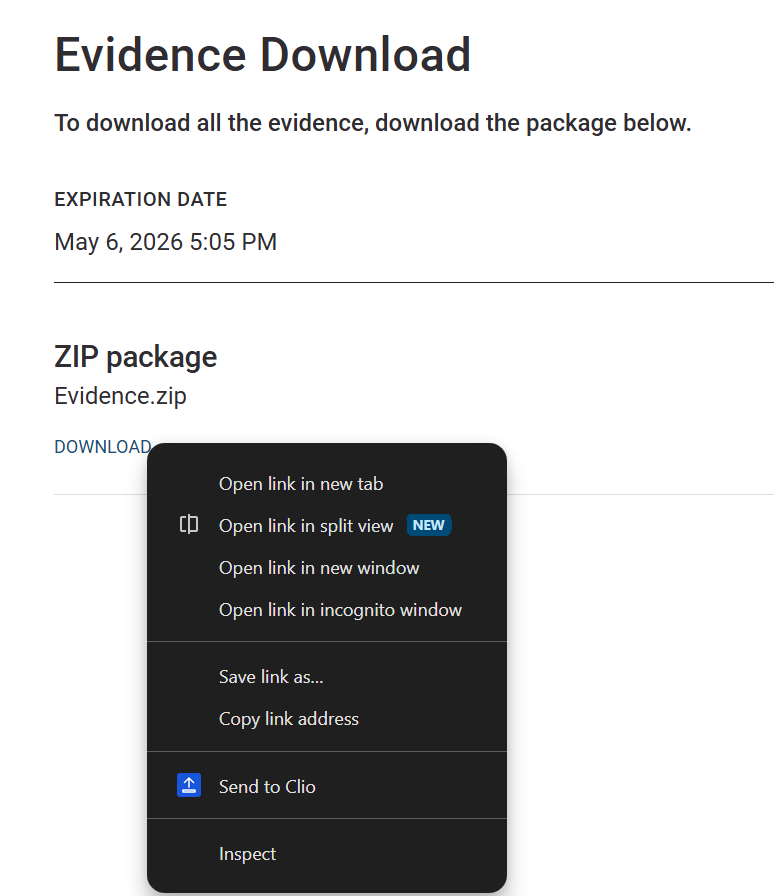
You can right-click any download link directly and select "Send to Clio" from the context menu. This bypasses automatic detection and works on any website. This is useful for:
- Websites with non-standard download buttons
- Links that open files in new tabs
- Evidence portals and secure document systems
- Any link that automatic detection doesn't recognize
Troubleshooting
My upload is stuck or failing
Try these steps:
- Check your internet connection
- Make sure you're still logged into Clio (try opening Clio in a new tab)
- Click "Retry" if the option is available
- If the file is very large, try again with a smaller file first
- Disconnect and reconnect your Clio account
- Restart Chrome
I can't connect to Clio
Try these steps:
- Make sure you have an active Clio account
- Check that you're using the correct Clio login credentials
- Disable any VPN or proxy that might block the connection
- Check if Clio is experiencing any outages at status.clio.com
- Try logging into Clio directly at app.clio.com first
- Clear Chrome's cache and cookies, then try again
I don't see my matters
Possible causes and solutions:
- Search query: Try searching by matter name or client name
- Permissions: Make sure your Clio account has access to the matters you're looking for
- Recently created: New matters may take a moment to appear in search results
- Token expired: Disconnect and reconnect your Clio account to refresh your access
The extension icon is grayed out
This means the extension isn't active on the current page. Try:
- Clicking the icon anyway - it should still open the popup
- Navigating to a different page
- Making sure you're on a regular webpage (not Chrome's settings or new tab page)
How do I check if the extension is working?
- Click the Send to Case icon in your toolbar
- You should see either "Connect to Clio" or the file picker screen
- If connected, try searching for a matter - results should appear
- Check Chrome's extension page (chrome://extensions) to ensure Send to Case is enabled
Page scan says "No downloadable files found"
Some websites use JavaScript or non-standard methods for downloads that automatic detection can't find. You have two options:
- Right-click the download link directly and select "Send to Clio" - this works on any link, even if automatic detection doesn't recognize it
- Start the download normally, then use Send to Case when the browser download begins
The right-click method is especially useful for evidence portals, insurance websites, and other secure document systems.
Contact Us
Still need help?
We're here to help! Send us an email and we'll get back to you as soon as possible.
Email support@sendtocase.com